The Song Page
Once you click on a song that you want to play in the song library, the song will be opened in the song viewer/player.
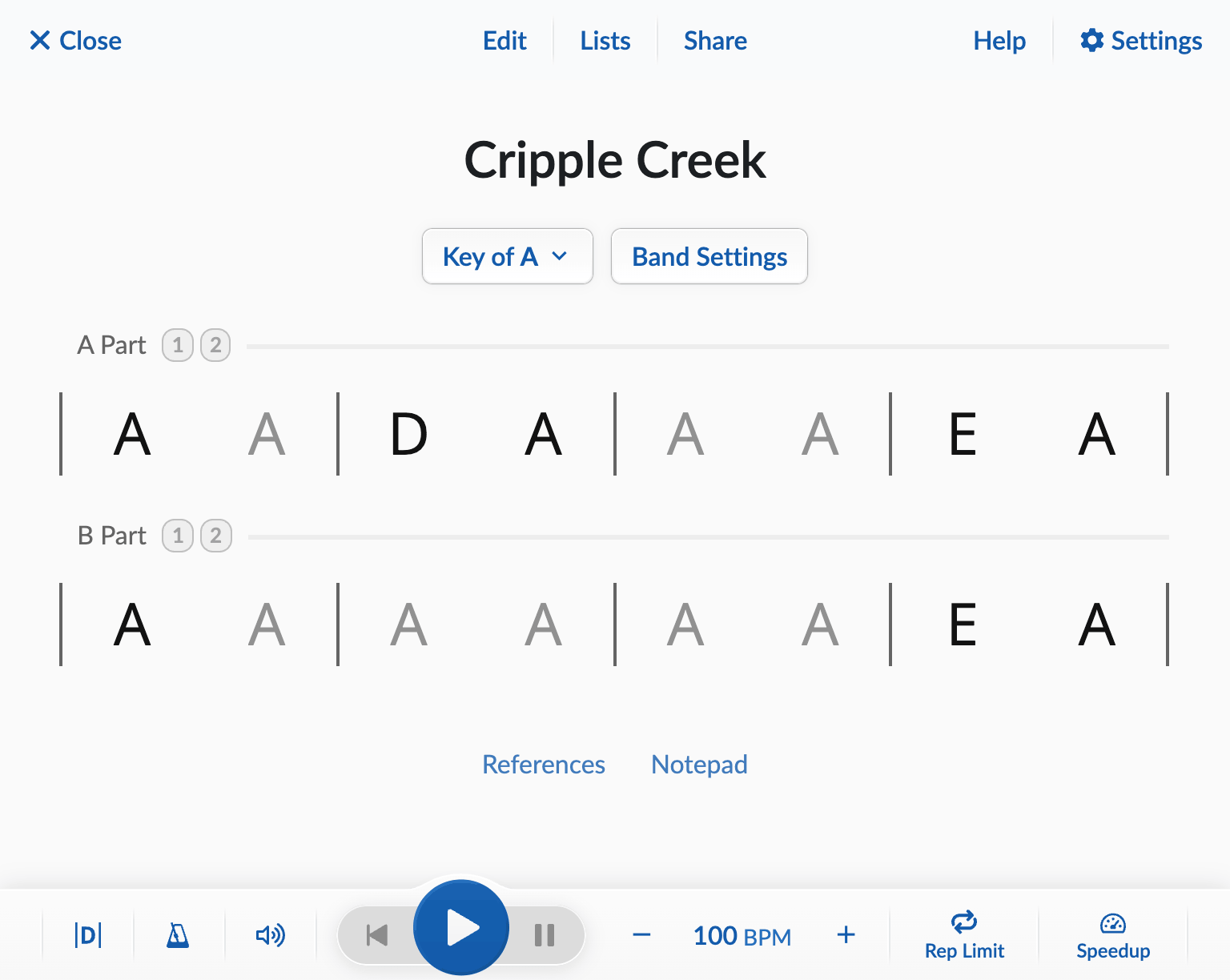
For smaller screens, open the Settings button in the top right toolbar to access Chart Display
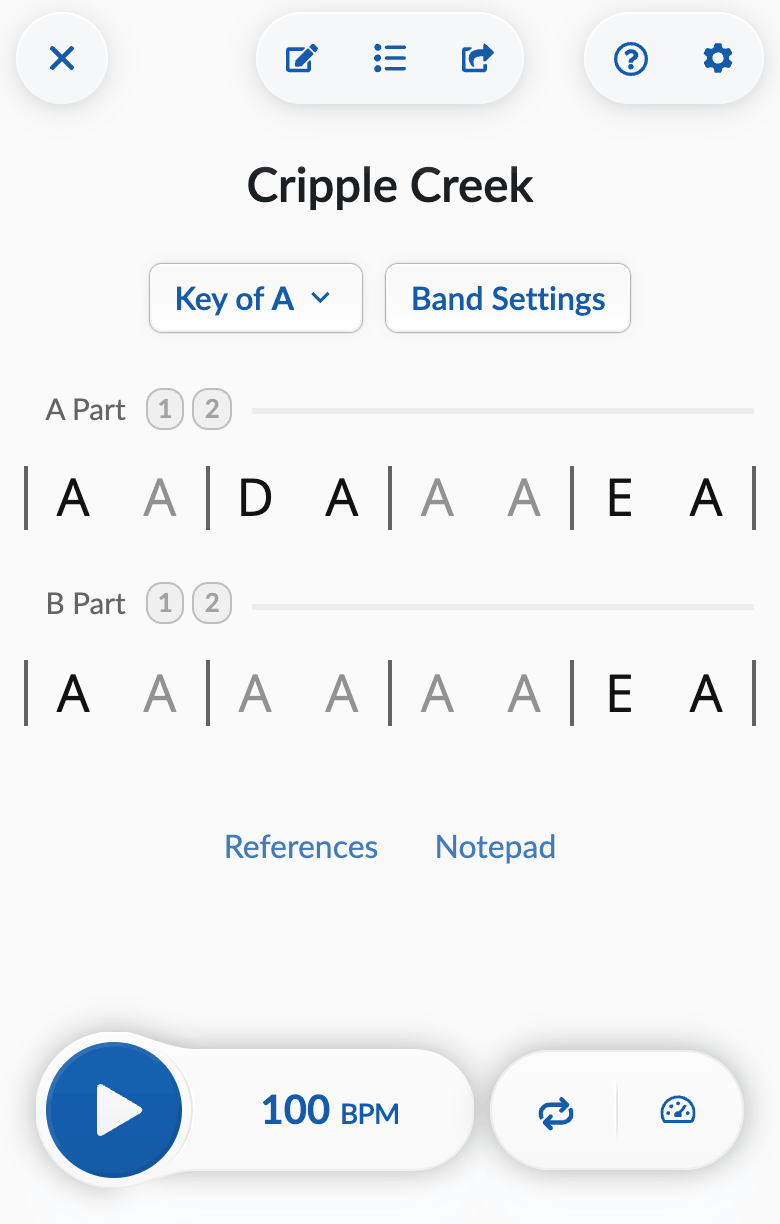
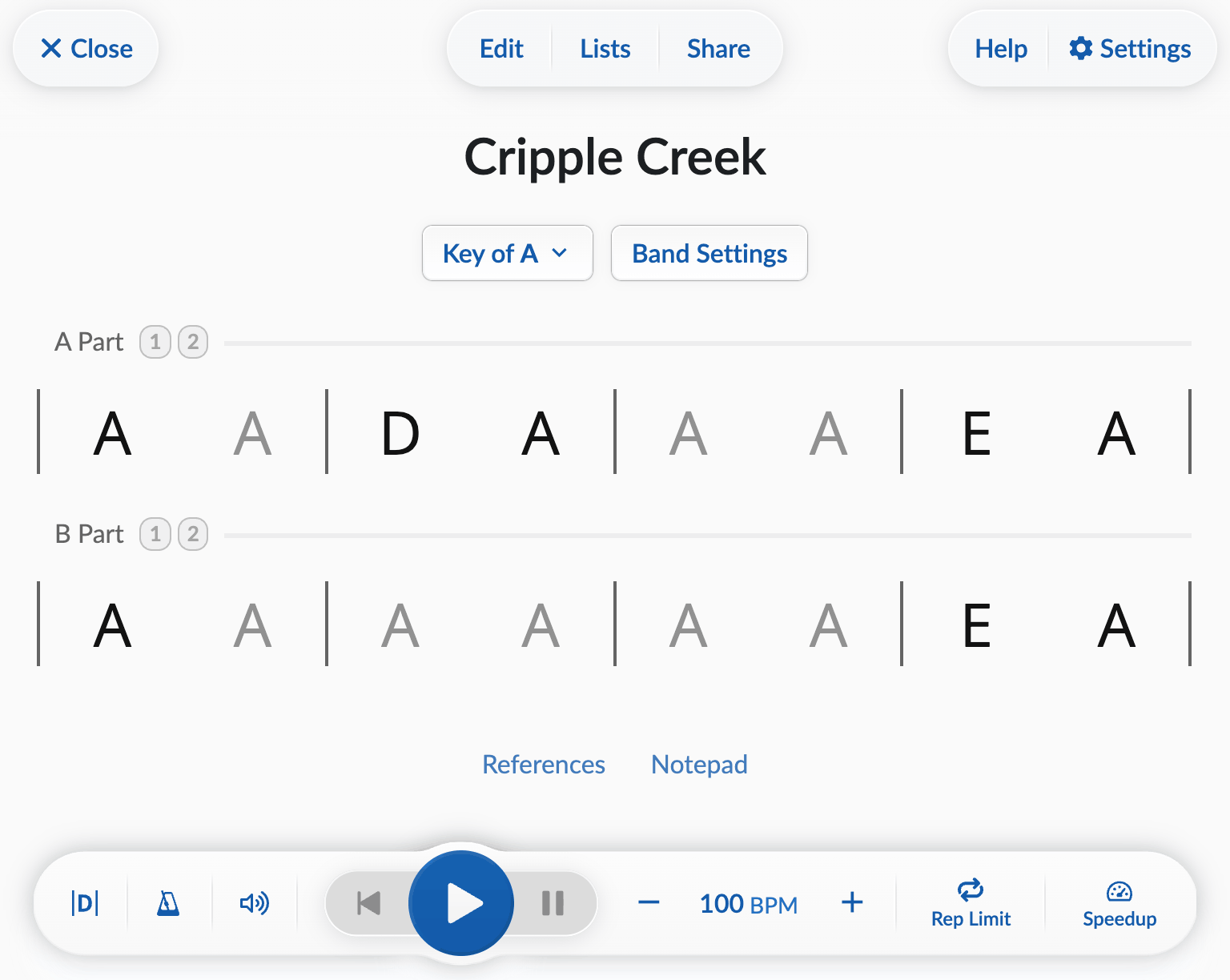
This page can be divided into five areas. From top to bottom, we have:
- The top toolbar
- The song title and key/band buttons
- The “chart” (chord progression and structure)
- References and Notepad buttons
- The playback bar
This guide covers each of these areas in turn, starting with the top toolbar.
In this article:
Top Toolbar



Close button
This button brings you back to the song library.
Edit menu
From the menu ( on a phone) menu, you can:
- Edit any existing song
- If it’s not your song, you’ll be able to edit a copy of it.
- Delete a song you’ve created
- Create a medley containing this song
Lists menu
From the menu ( on a phone) menu, you can change which list(s) the song is on, creating new lists as necessary. See Using Song Lists to learn more.
Share menu
From the menu ( on a phone) menu, you can share songs with whoever you like, however you like. Fellow Strum Machine users will be able to play the song; those without an account will still be able to view the chords. This is also where you can Print the chord chart for the song.
Help menu
From this menu, you can search for help, access the forum, or email us.
Settings menu
On smaller screens, this opens a dropdown menu with various settings options:
On larger screens, this directly opens the app-wide settings interface, where you can change all global settings.
Title and Key/Band Buttons
Below the top toolbar, we have the song title and the Key and Band buttons below it:
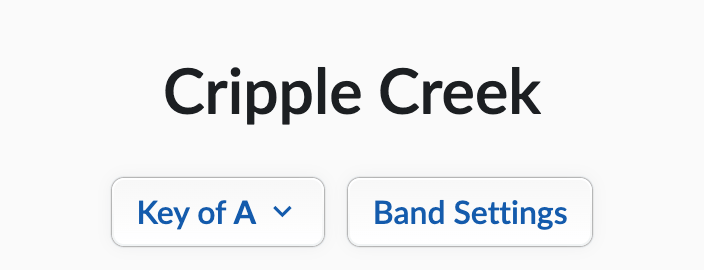
- button, which includes key, capo, and modulation options
- The button, for changing how the instruments play and sound during playback
Chart (chord progression and structure)
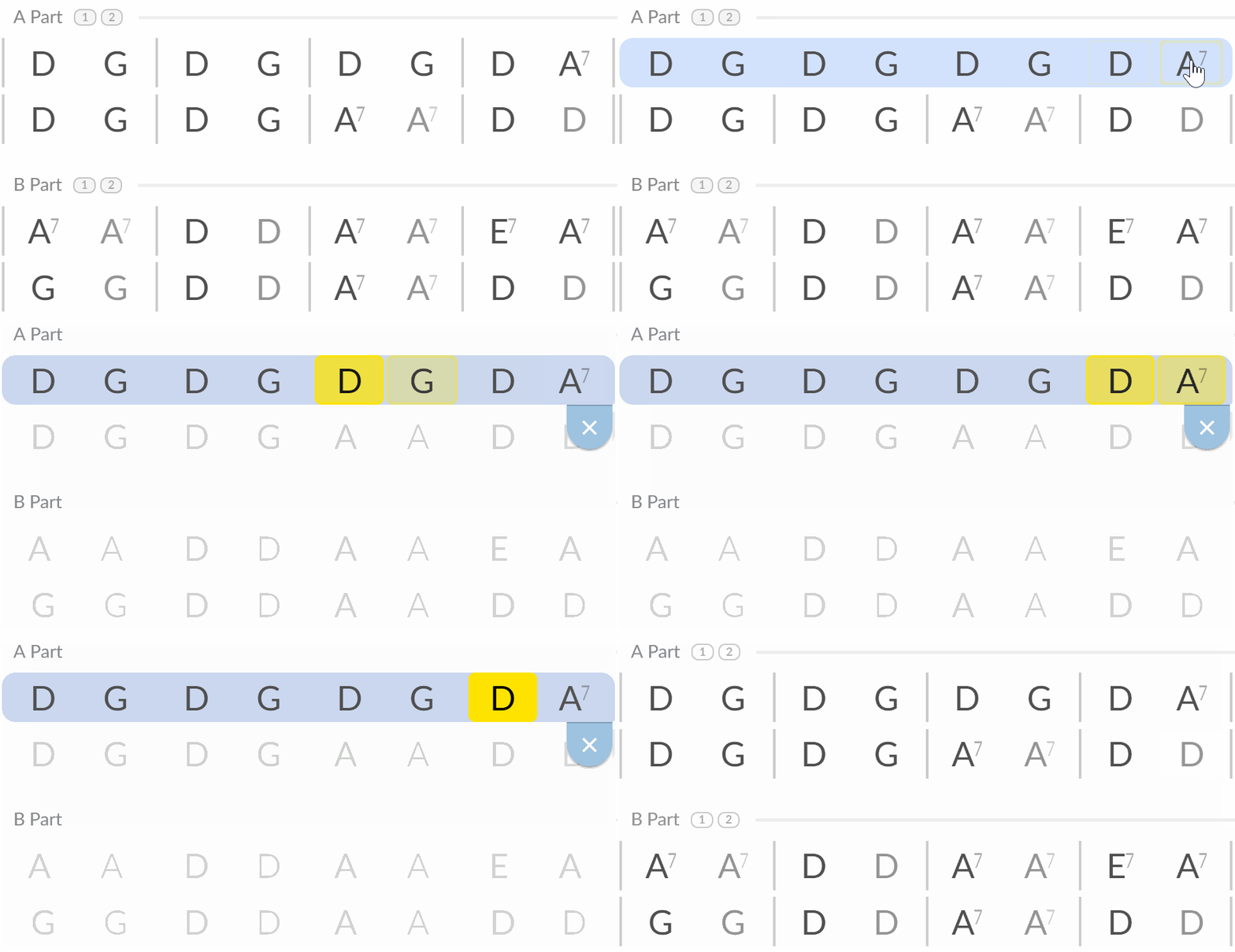
The chart displays the chord progression and structure of the song you are viewing or playing along with. It’s interactive, you can start playback from any point, or create a loop by clicking and dragging from the first one chord to another, the same way you would normally highlight text.
References and Notepad
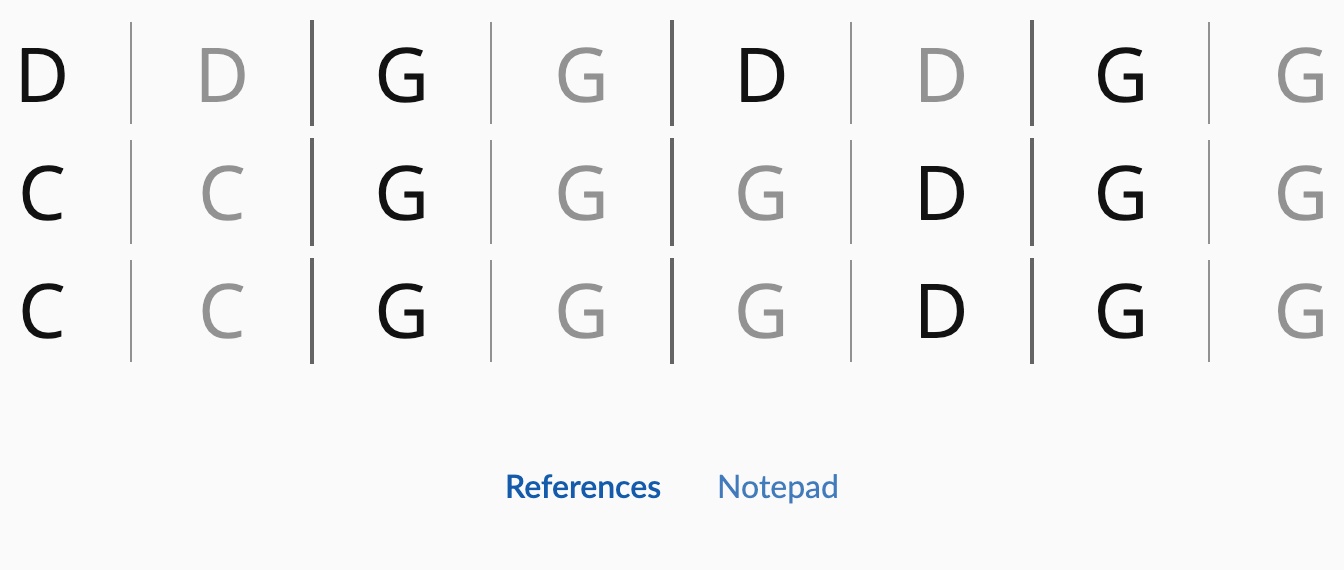
Add song information, lyrics, and references (recordings, videos, etc). Strum Machine’s version of liner notes.
Playback Bar
Down at the bottom of the screen, we have the playback bar:

From left to right:
- Quick Settings menus Set Volume, Metronome, Count-in, and Chart settings globally (on smaller screens, these can be found in the top-right Menu instead)
- Playback controls to start, stop, pause, and restart playback
- BPM controls to change the tempo (speed) of playback
- to make the song stop after a certain number of repetitions
- feature to automatically increase the speed of playback over time

From left to right:
- Quick Settings menus Set Volume, Metronome, Count-in, and Chart settings globally (on smaller screens, these can be found in the top-right Menu instead)
- Playback controls to start, stop, pause, and restart playback
- BPM controls to change the tempo (speed) of playback
- to make the song stop after a certain number of repetitions
- feature to automatically increase the speed of playback over time
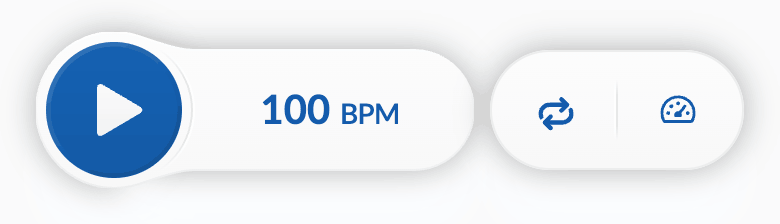
From left to right:
- Play/Stop button to start or stop playback
- BPM controls to change the tempo (speed) of playback
- to make the song stop after a certain number of repetitions
- feature to automatically increase the speed of playback over time
Quick Settings Menus
For most screen sizes, you’ll see three icons on the left side of the playback bar. From left to right these are Chart Display
On smaller screens, the quick settings menus can be found in the top-right Settings (or ) menu.
Playback Controls
The big blue button starts playback:
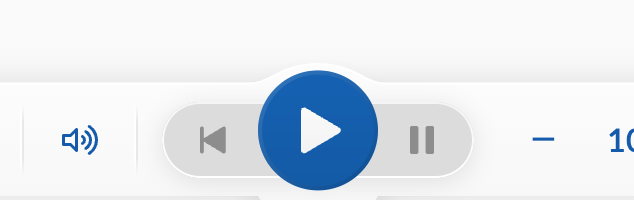
When the song is playing, you’ll see this:
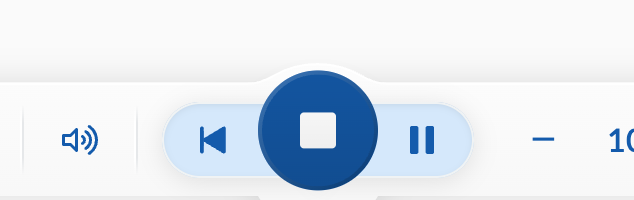
- restarts playback.
- pauses playback (without resetting the playback position).
- stops playback.
The big blue button starts playback:
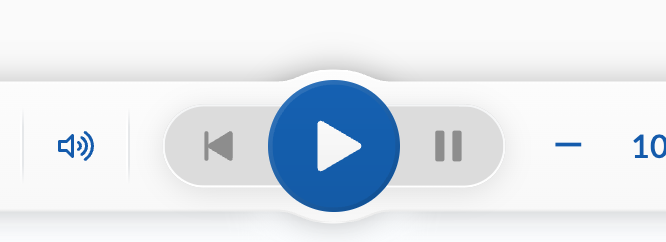
When the song is playing, you’ll see this:
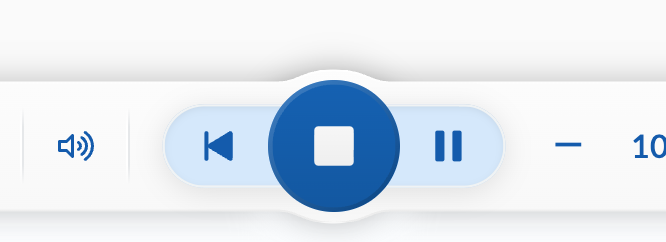
- restarts playback.
- pauses playback (without resetting the playback position).
- stops playback.
The play/stop button is in the bottom-left corner of the screen. Due to space constraints, there are no pause or restart buttons.
When the song is playing, the same button becomes a stop button:
BPM Controls
The current playback speed is shown in BPM, or beats per minute. By default, this means quarter notes per minute in 3/4 time and downbeats per minute in other time signatures, although this can be changed.
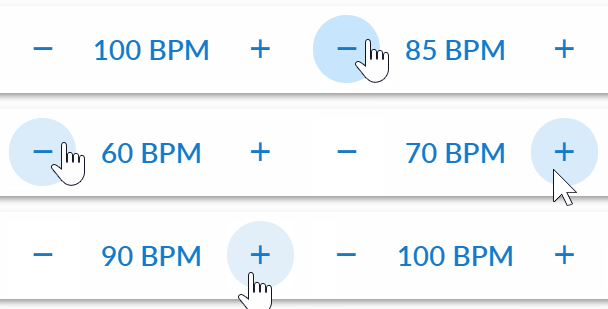
Click on the –/+ buttons to raise/lower the speed in 5 BPM increments, or hold down Shift to adjust 1 BPM at a time. Or, click on the current BPM display to type in a tempo:
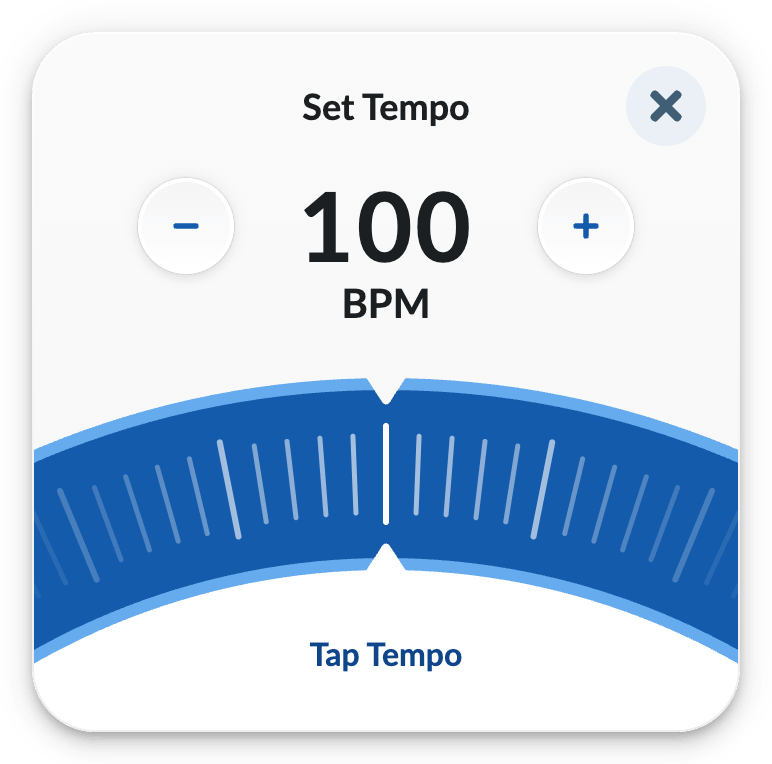
On smaller screens where no –/+ is available in the playback bar, click on the current BPM display to open the BPM dial:
Rep Limit
You can control how many times an entire song or set loop repeats before automatically stopping. Learn more about Rep-Limit here.
Speedup
Speedup increases the tempo by a set amount every time the song repeats (or after every n repetitions). This tool is great for building speed on your instrument. Try setting it to 1 BPM or 2 BPM; you’ll barely notice the speed increasing each time, which is a great way to “sneak up” to your top speed. Learn more about Speedup here.