Using Song Lists
In Strum Machine, you can organize your songs into song lists. Lists appear front and center when you open the app, giving you a way to quickly access songs without searching for them:
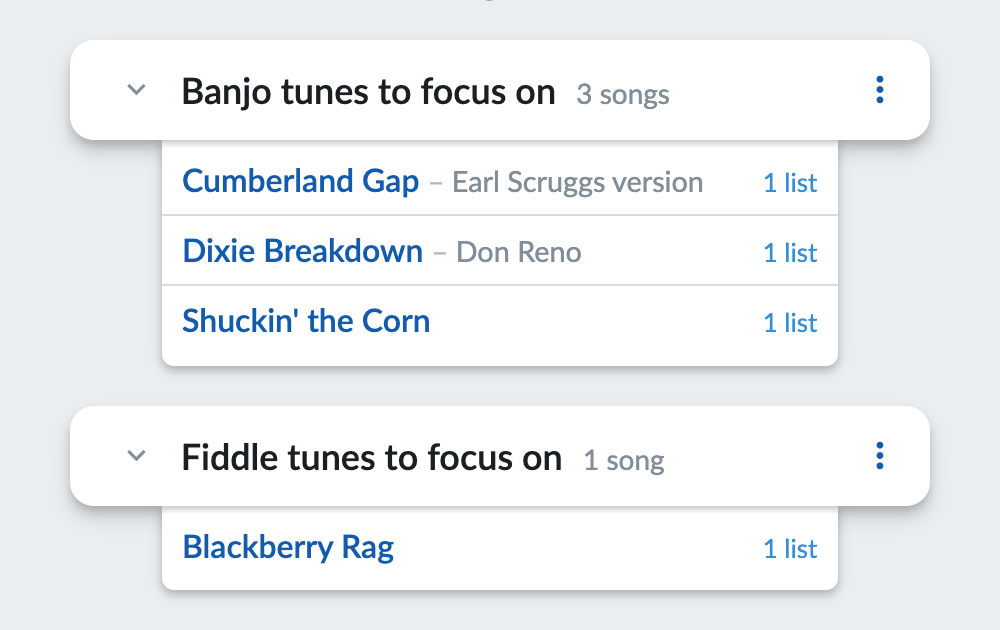
You can make lists based on genre, key, practice routine, band, jam group, or whatever you like. Lists can act as a playlist, with songs playing one after another. And you can also share lists with others, or load lists from other people into your account.
In this article, you’ll learn all about how to use song lists in Strum Machine.
In this article:
Adding songs to a list
You can add a song to a new or existing song list from two places:
- The home screen (where you search for songs)
- A song page (where you view/play the song)
Songs can be added to multiple lists if desired.
From the home screen
Find a song you want to put on a list by using the song search bar on the home screen. Once you see the song you want, click the “” next to the song, or the “” indicator if the song has been added to a different list already:
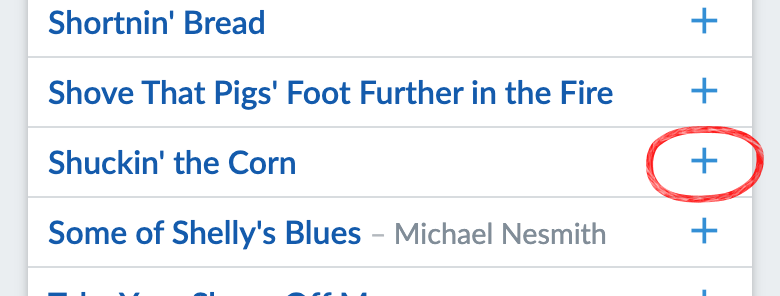
Once the “Lists for [song]” menu appears, click on any existing lists you’d like to add the song to, and/or click the button and type in a list name to start a new list.
From a song page
If you already have a song open and want to add it to a new or existing list, open the Lists menu (the icon on a phone) at the top of the screen:
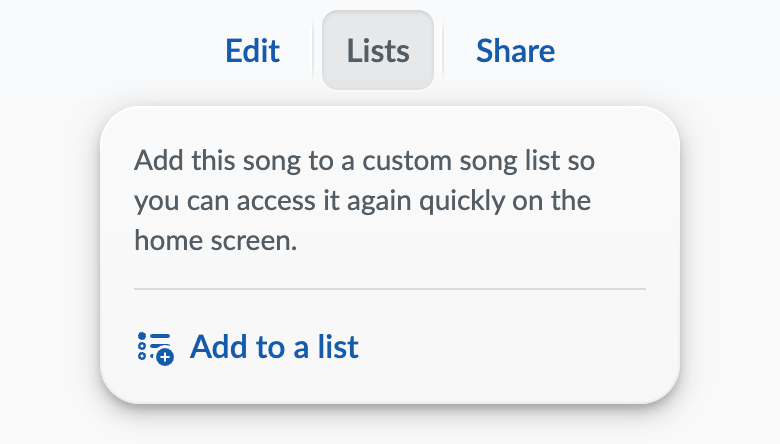
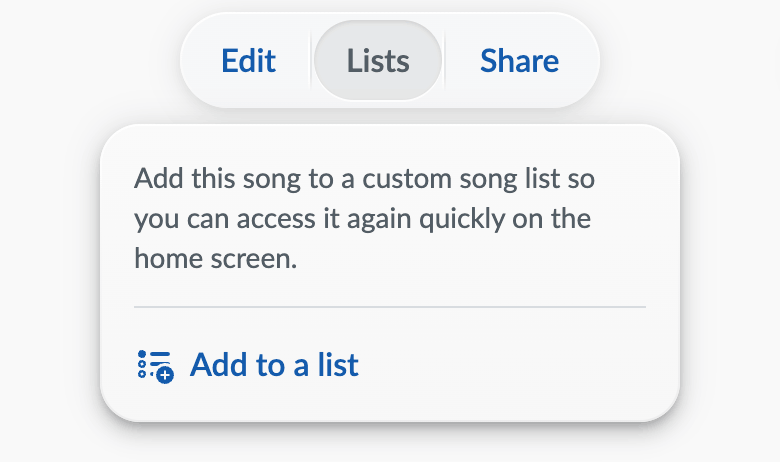
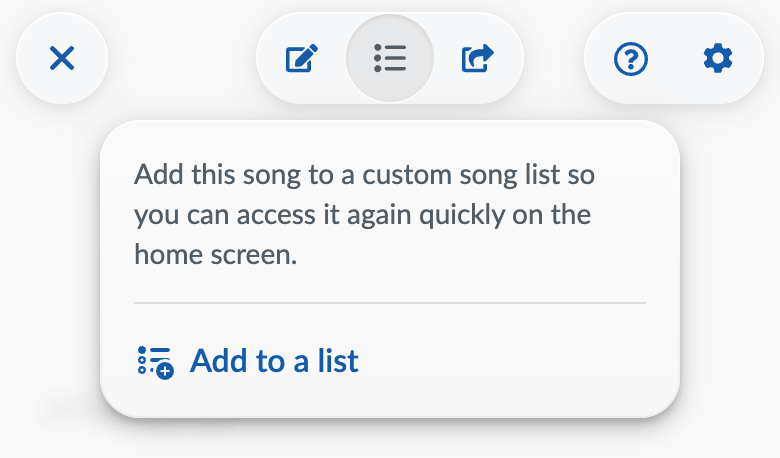
Once the menu appears, click the button. Click on any existing lists you’d like to add the song to, and/or click the button and type in a list name to start a new list.
Removing songs from a list
Removing a song from a list looks very similar to adding a song to a list, and you can do this from either the home screen or the song page:
From the home screen, click on the “” indicator next to the song (which shows you how many lists the song currently belongs to) to bring up the “Lists for [song]” menu. Uncheck the list(s) you want to remove the song from.
From the song page, click the menu (the icon on a phone) at the top of the screen, then click . Uncheck the list(s) you want to remove the song from.
Renaming a list
To rename a song list, open the menu on the right side of the list and tap :
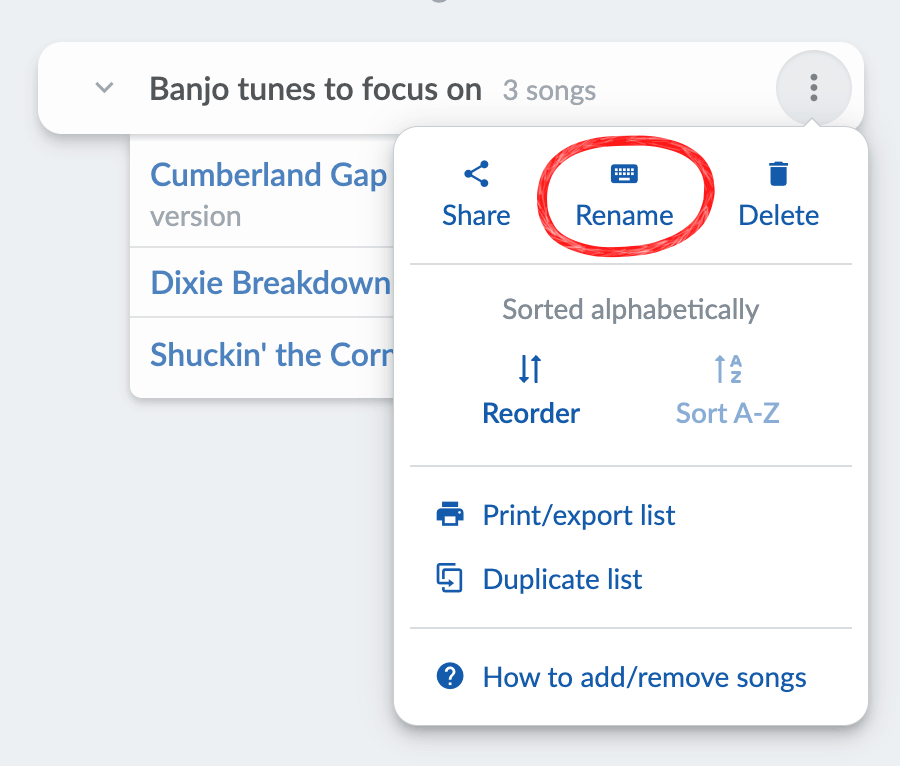
Pro tip: Lists are displayed on the home screen in alphabetical order. One way to change the order of your lists is to number them, e.g.:
- Fiddle Tunes in G
- Fiddle Tunes in A
- Banjo Practice List
Lists shared with you by others cannot be renamed.
Deleting a list
To delete a song list, open the list menu and tap :
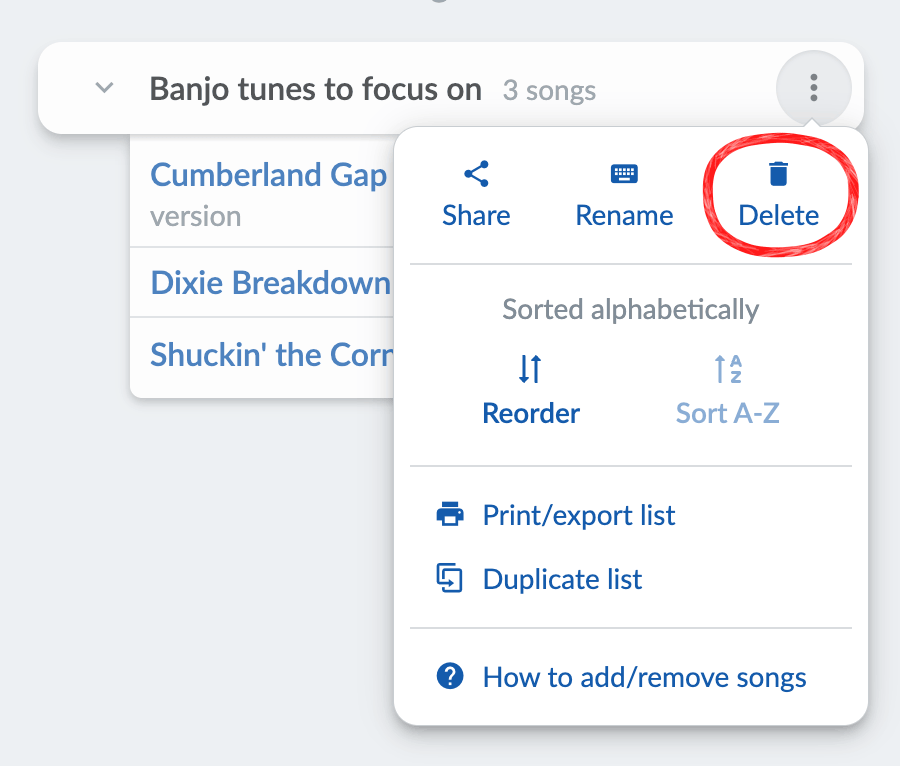
Warning: Deleting a list is permanent—there’s no undo!
Lists belonging to others that you’ve added to your account can’t be deleted by you, but you can remove them from your account via the same menu—look for the option.
Changing the order of songs within a list
Songs in a list are sorted alphabetically by default, but you can manually reorder them as well.
To reorder a song list, open the list menu and click “Reorder”:
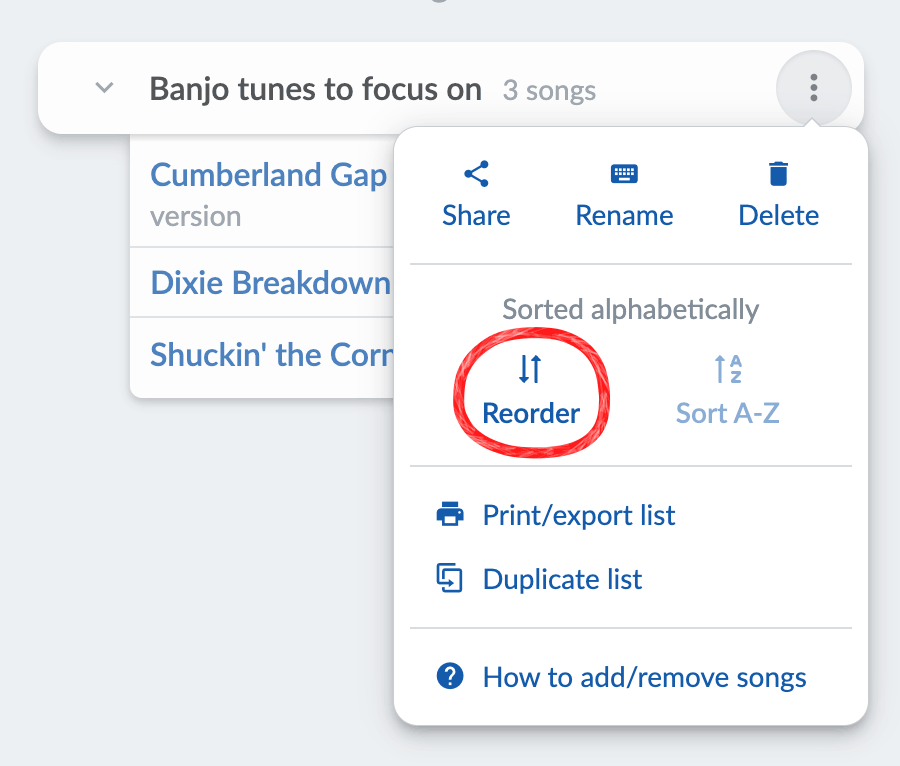
Click-and-drag songs up and down until they’re ordered the way you want them, then click “Save Order”.
To go back to alphabetical order, open the list menu again and click “Sort A-Z”.
Lists shared with you by others cannot be reordered.
Sorting lists by key
We’ve received a few requests to allow sorting lists by key. There are some technical challenges that have gotten in the way of a) displaying the key of a song in the list, and then b) sorting by key. But this is something we plan to work on in the future.
In the meantime, if you’d like to sort songs by key we recommend creating separate lists for each key. For example, this is what Ken Torke of Tater Joe’s did with his lists of old-time tunes (a great resource for old-time players).
Changing the order that the lists appear
The order of the lists themselves (as opposed to the songs within each list) is currently alphabetical only. We plan to add the ability to reorder lists manually in the future.
For now, if you’d like to move lists around on the home screen, we recommend adding a number to the beginning of each list name, for example:
1 - Old-time fiddle tunes
2 - Bluegrass fiddle tunes
…etc
Letters and other characters (including emoji!) will also do the trick.
Printing & exporting lists
To display a printable version of a list, or to copy-paste the list into a spreadsheet or other app to edit it further, click the menu on the right side of the list, then click .
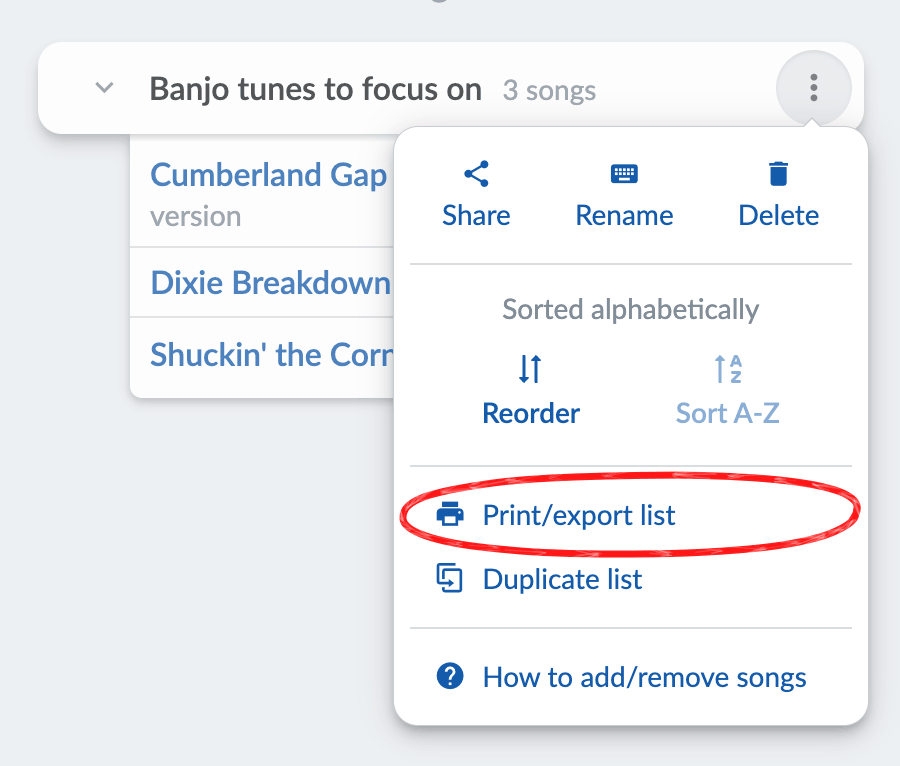
Only song titles are shown at this time.
Duplicating a list
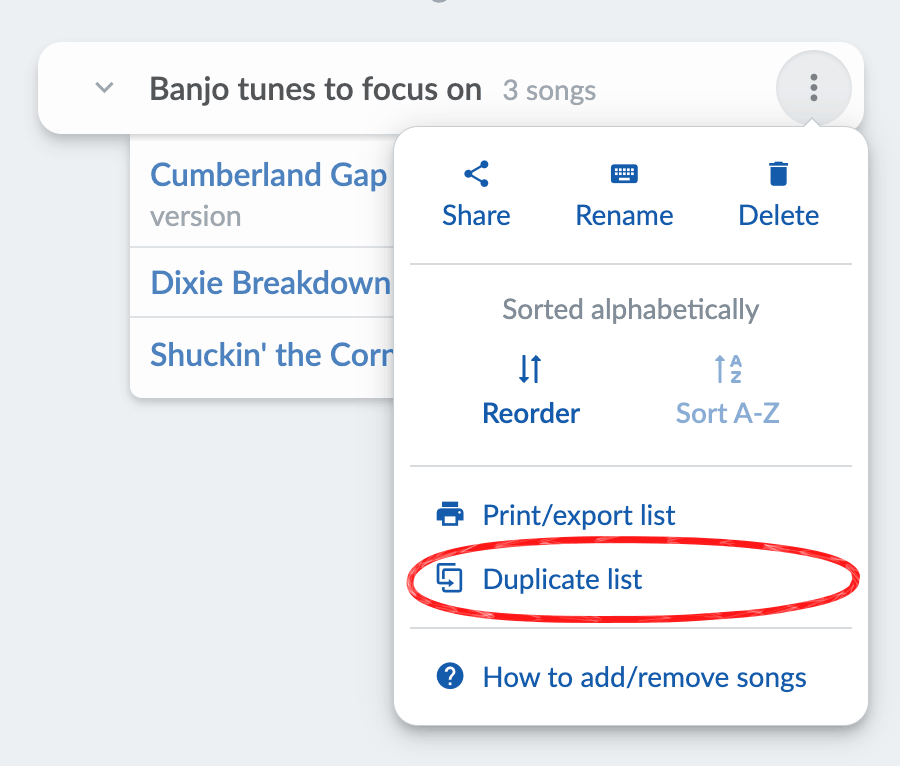
To make a new list with the same songs as an existing list, click the menu on the right side of the list, then click .
Collapsing lists on the home screen
Too many lists on your home screen? Try collapsing the ones you don’t need at the moment. Just click on the list heading to collapse it, and click again to expand it.
Sharing lists
Click the menu on the right side of the list, then click :
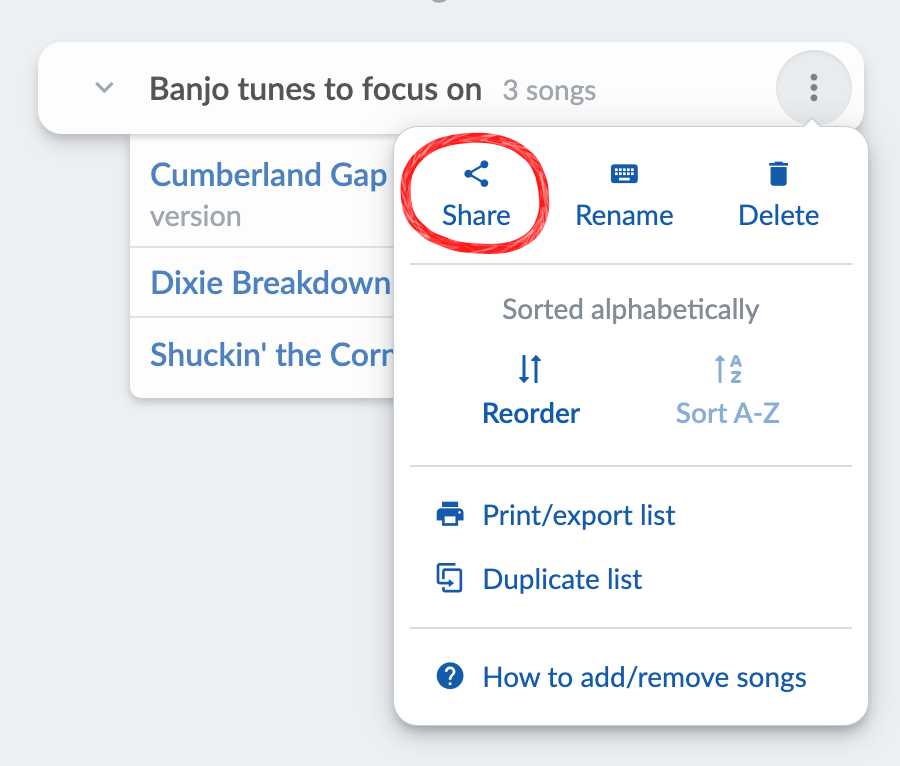
This will take you to a page with instructions about how to share your list with other Strum Machine users, by sending an email or other means.
Collaborative lists
Shared lists are only editable by you by default. If you want others to be able to modify your list, you can turn on “Allow other users to add/remove songs” on the list-sharing page. Be careful, because having this option on means that anyone you share the list with can add or remove songs from it at any time! However, it can be a very useful feature in group situations like a band.
Community forum for sharing song lists publicly
Folks have started sharing songs and song lists on the community forum. Go to Categories and then Songs/Lists to see all the shared songs/lists in one place, and feel free to contribute your creations!
Navigating songs with the list navigation bar
When you open a song from one of your lists, a list navigation bar appears at the top of the screen.

You can use this to quickly access other songs in the list, automatically move through the list, shuffle the order of songs. Learn all about the list navigation bar.