Chart Display Settings
Don’t like the default look of Strum Machine’s chord charts? Perhaps you prefer to use numbers for chords—the so-called Nashville Number System—or want to change other aspects of how chords are displayed:
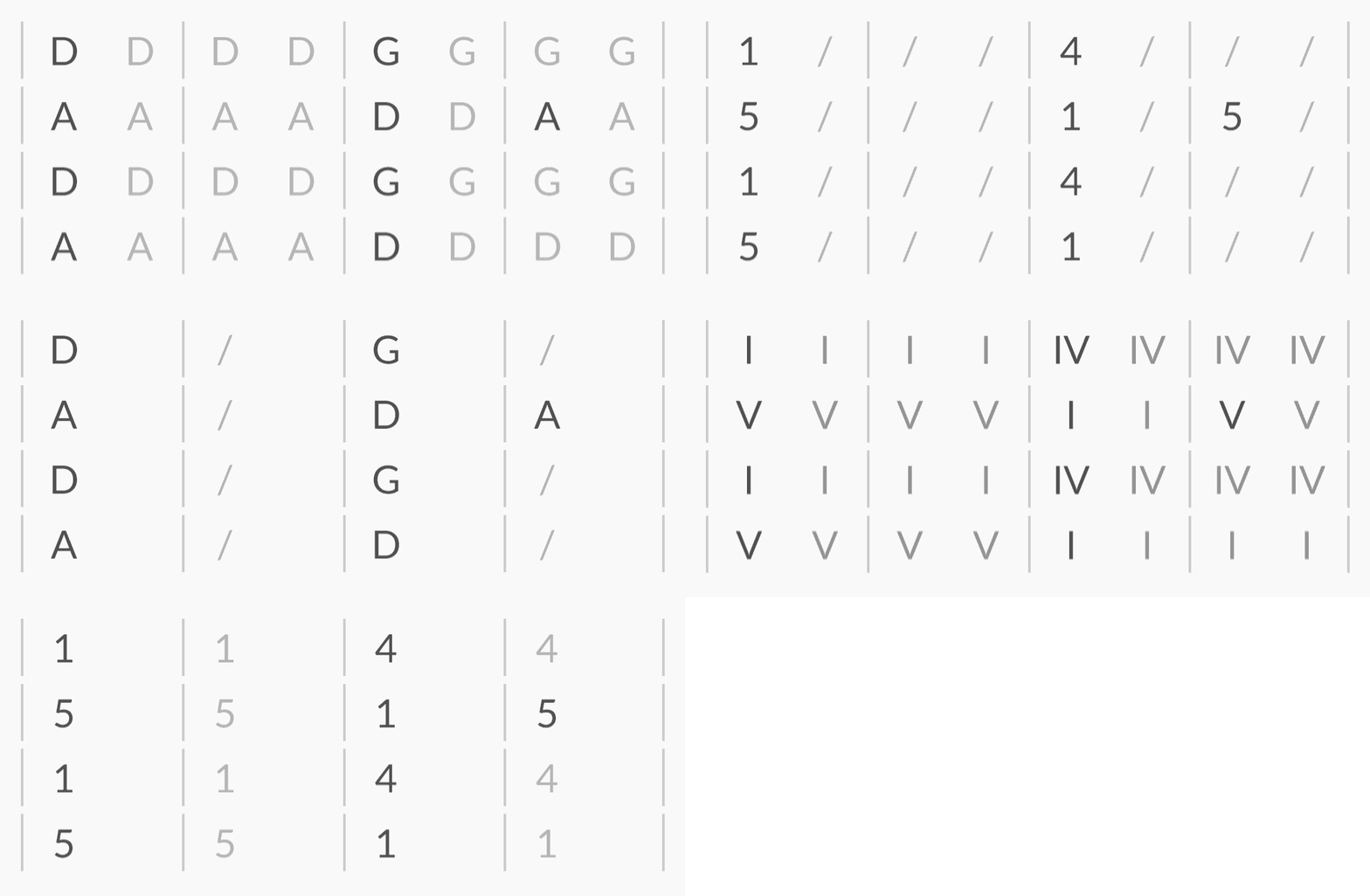
These preferences can be set in the Chart Display settings menu.
Opening the Chart Display Settings Menu
Click on the Chart Display menu button in the playback bar:

If your app or browser window is narrow and the quick-settings menu buttons aren’t visible on the playback bar, open the top-right and click .
Tap on the Chart Display menu button in the playback bar:

If your screen is narrow and the quick-settings menu buttons aren’t visible on the playback bar, go to menu → in the top-right corner.
Tap on the button in the top-right corner, then tap on :
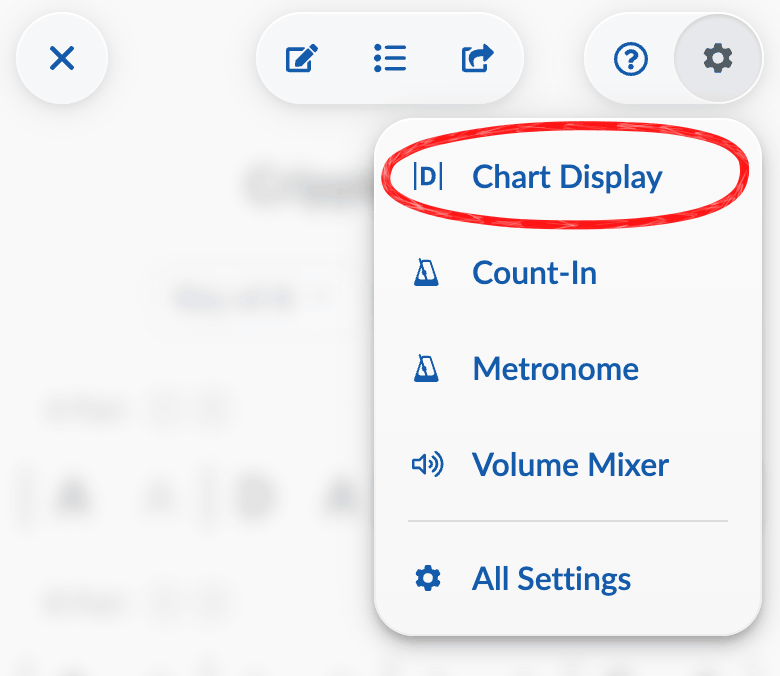
Chart Display Settings
The count-in settings menu has a few options you can adjust:
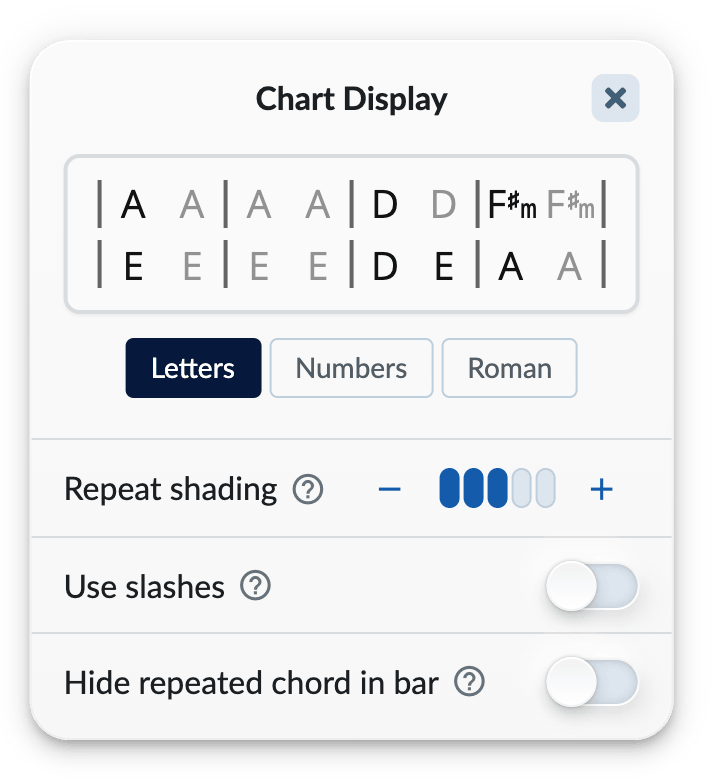
These are global settings which apply to all songs.
Letters / Numbers / Roman
This changes the system used to display chords:
- Letters: The standard default.
- Numbers: Key-independent chord notation. Also known as the Nashville Number System, or the “1-4-5” system.
- Roman: Also a key-independent system, just using Roman numerals instead of normal numbers. Minors are lowercase Roman numerals.
If you’re new to the “1-4-5” system, I highly recommend you try it out! It’s not only very useful to know about but I believe it will help you become a better musician. Watch my video introduction to it here (the Part 2 video on that page).
Repeat Shading
You can use the – and + buttons to change the shading for repeated chords. Making them dimmer helps the chord changes to stand out more. Turn it all the way up to make all chords the same color, or turn it all the way down to make repeated chords invisible.
Use slashes
Replaces repeated chords with slashes.
Hide repeated chord in bar
When this setting is enabled and the second chord in a bar is the same as the first, it will be hidden. The end result is you’ll only see one chord per bar unless there’s a mid-measure chord change.
Try changing the various settings; you’ll see the effects of your changes instantly. You might find that you prefer seeing 1-4-5 notation, slashes for repeated chords, and one chord per bar when possible… as does Strum Machine’s creator. Or you might have different preferences entirely! Play around and see.
Other Chart Display Settings
There’s one more Chart Display setting available at the moment, which isn’t in the quick-settings menu for Chart Display. The setting is called Minor key numbering. When enabled, number chords in minor keys are based around the relative major—e.g., in the key of Am, Am shows as 6m (as it would be in the key of C) instead of 1m.
To toggle this setting, you’ll have to go to (the app-wide settings interface) and then go to .
Capoed Chords
Strum Machine also has a “capoed chords” setting for viewing chords as if the capo is in use, but that’s not here; see Capoed Chords to learn how to use that feature.