Count-In Settings
By default, you’ll hear both a muffled “boom chuck” and a “1, 2, 3, 4” to lead you into the first beat of the song. This is called the “count-in”, and you can fully customize it through the Count-In Settings menu.
Opening the Count-In Settings Menu
Click on the Count-in & Metronome menu button in the playback bar:

If your app or browser window is narrow and the quick-settings menu buttons aren’t visible on the playback bar, open the top-right and click .
Tap on the Count-in & Metronome menu button in the playback bar:

If your screen is narrow and the quick-settings menu buttons aren’t visible on the playback bar, go to menu → in the top-right corner.
Tap on the button in the top-right corner, then tap on :
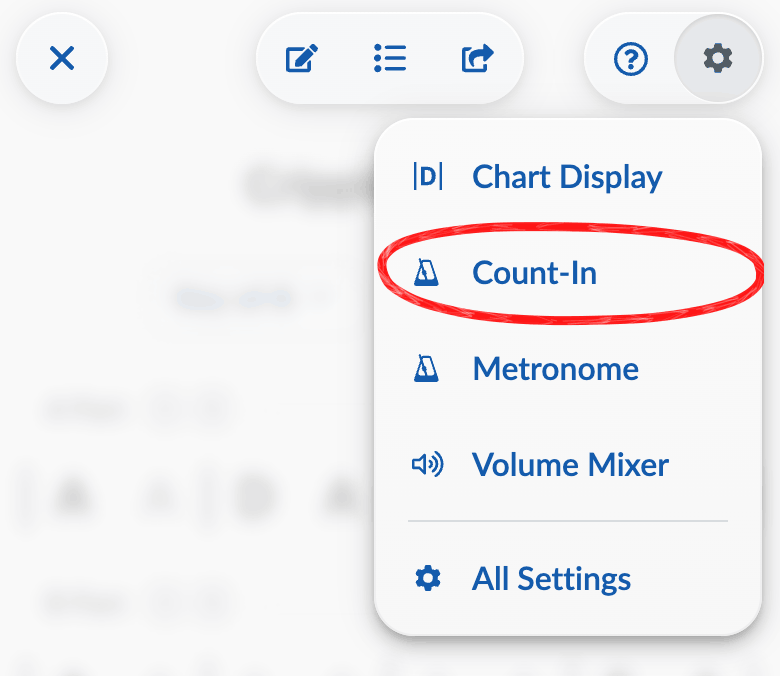
Count-In Settings
The count-in settings menu has a number of options you can adjust:
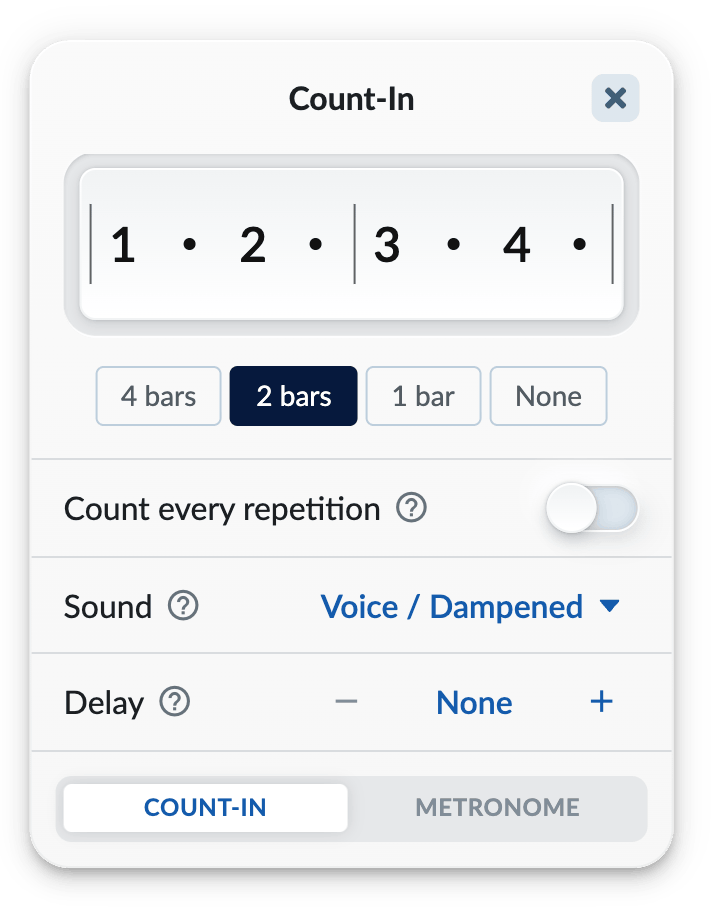
These are global settings which apply to all songs.
Count-In Cutoff (and Visual Preview)
The top row in the menu shows a preview of the current count-in.
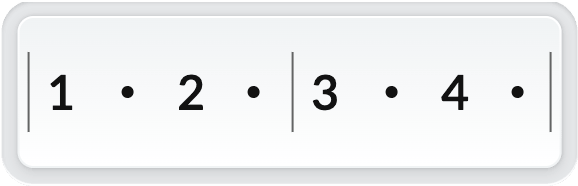
By clicking on a beat in the count-in, you can set the “cutoff” for the count-in: the point at which it will go silent. This gives you space in which to play some lead-in notes.
For example, clicking on the “3” in the default count-in will make it go “1, 2, 3” and then leave space where “4” would be:
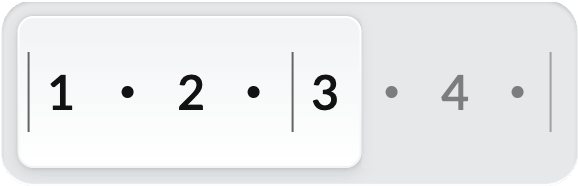
This is standard practice when counting off songs in real-world bluegrass jams, where your kickoff generally starts on the ”&” after “3”.
Count-In Length
This determines how many measures long the count-in should be. 2 bars is typically what folks use, but you can double it (4 bars) for extra count-in time, halve it (1 bar) for a very short count-in, or even choose “None” for no count-in at all.
Count every repetition
When this setting is enabled, you’ll hear the count-in every time the song (or looped part of the song) repeats.
Sound
You can toggle various sounds available for the count-in:
- Voice (either normal or “quick” cadence)
- Guitar (either dampened, strummed, or stops)
- Percussion (wood block, clave, or drumsticks)
Click on a selected sound to remove it.
Delay
This adds time (measured in seconds) that occur before any count-in begins, giving you more time after hitting “play” to pick up your instrument and prepare yourself.
Different Count-Ins for Different Time Signatures
By default, Strum Machine does its best to apply your count-in settings to all time signatures. If you would rather have unique settings for each time signature, you can set this up by going to → and turning off Use same length & sound for all time signatures. You’ll then be able to see and modify the count-in settings for each time signature individually.