Keyboard Shortcuts & Command Bar
Strum Machine has a keyboard shortcut for most of what you do on a song page, and you can change any of them to suit your hands (or your foot pedal). On a phone or tablet, shortcuts need a hardware keyboard or a footswitch.
In this article:
Customizing shortcuts
You can view and change shortcuts in Settings → Keyboard/Footswitch. For actions with no shortcut, click on that row and then press the key (or foot pedal) you want. If the action already has a shortcut, click Add another shortcut. Each action can have up to three shortcuts.
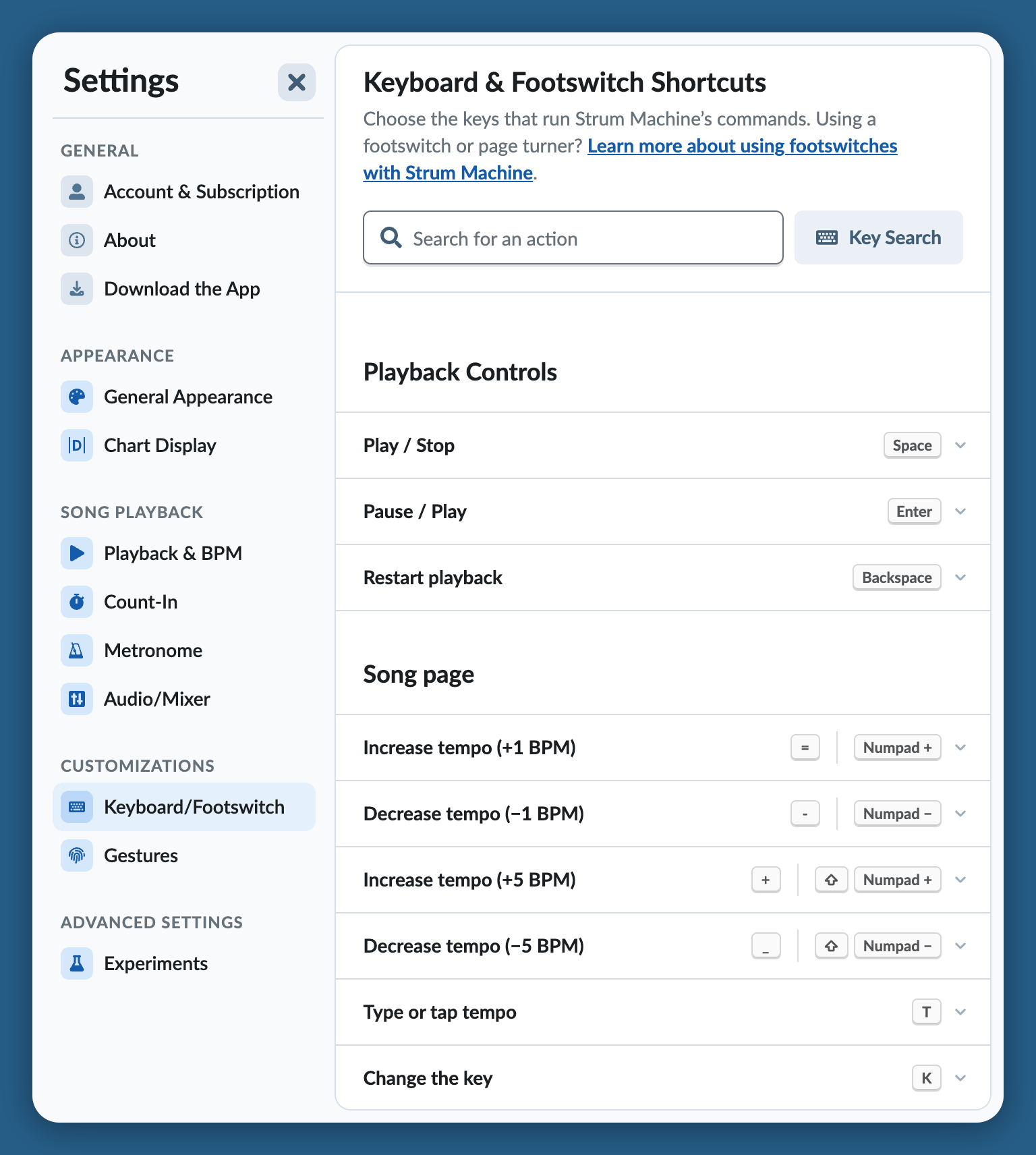
If another action already uses that key, Strum Machine tells you which one, with a link to it, so you can free up the key first. Not sure what a key does? Click Key Search and press it, and the list narrows to the actions that use it.
To undo your changes, click Reset Keyboard Shortcuts at the bottom of the page and choose which shortcuts go back to their defaults.
The command bar
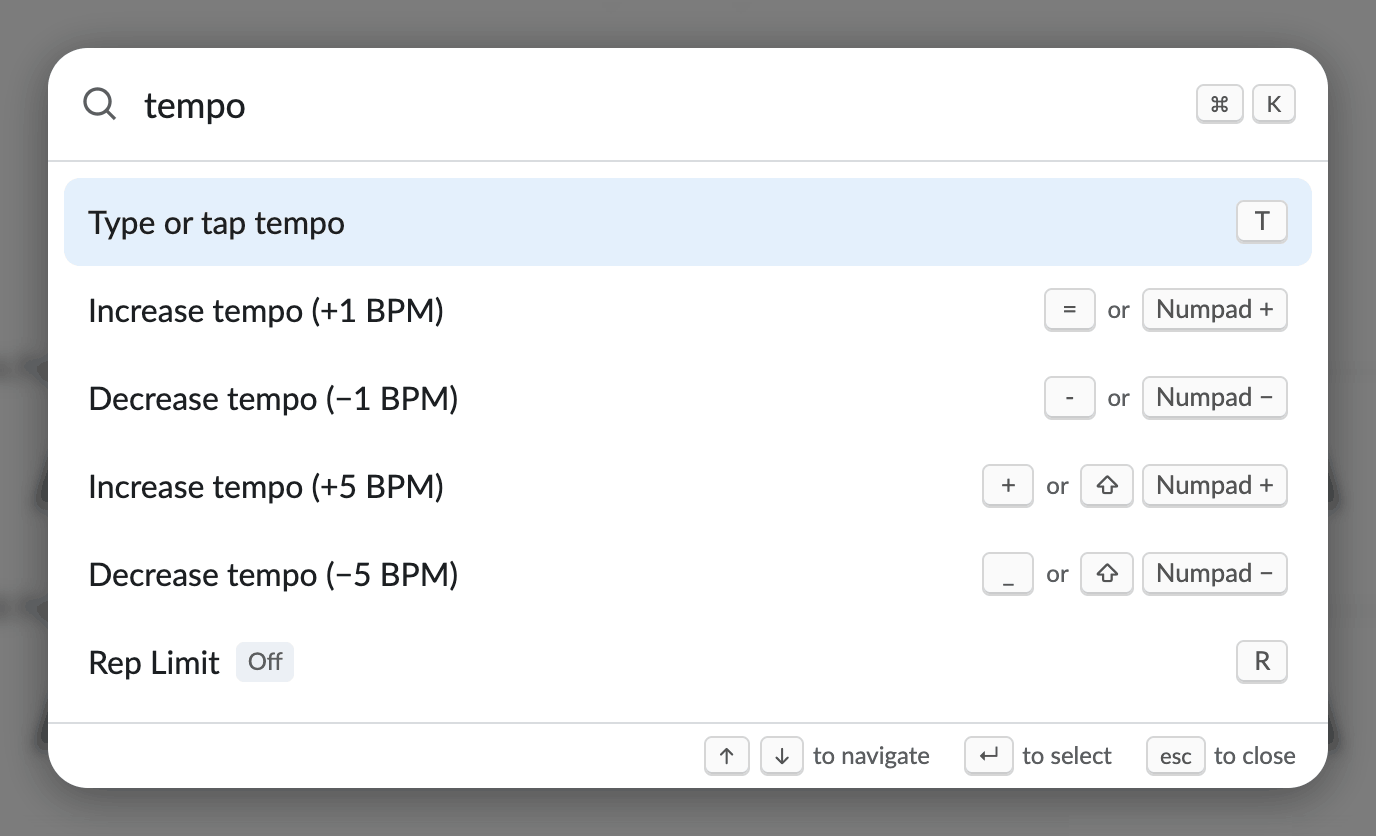
Press Ctrl+K ⌘K to open the command bar, type a few letters of what you want to do, and press Enter to run it. Each command shows its shortcut beside it, so the command bar is also the easiest way to learn them. Press ? instead to browse every command available where you are.
Default shortcuts
On a song page, here are some of the default keyboard shortcuts:
| Key | Action |
|---|---|
| spacebar | Play or stop |
| Enter | Pause or play |
| Backspace Delete | Restart the current section* |
| - / = | Lower or raise the tempo by 1 BPM** |
| T | Type or tap a tempo |
| K | Change the key |
| R | Open Rep Limit |
| S | Open Speedup |
| ← / → | Previous or next song in the list |
| F | Enter full-screen mode |
* Press Backspace Delete twice to restart the whole song
** Hold Shift to adjust in 5 BPM increments
On the home screen, / puts you in the search bar (or just start typing). / also brings you from a song page back to the home screen.
In the song editor, many shortcuts are available, and using the keyboard is the recommended way to create and edit charts if you want to go fast. To see the available shortcuts in the editor, press ? or look for the Shortcuts button in the toolbar at the bottom of the screen, or open Settings → Keyboard/Footswitch and scroll down to the “Editor” section.
Foot Out
Foot Out ends a song after the current rep, without reaching for the screen. Turn it on in Settings → Playback & BPM.
By default, Foot Out shares the spacebar with Play / Stop: press spacebar to start the song, press it again to end after this rep, and press it once more to stop right away. It’s especially useful when using a footswitch.